STQRY integrates with Claude by Anthropic to help you upload content, create tours, and manage your projects faster. Instead of adding content manually one item at a time, you can describe what you need in plain language and let Claude do the heavy lifting.
What can you do with STQRY Studio for Claude?
- Upload images in bulk — drop a folder of photos and have them added to your project automatically
- Create tours from a description — tell Claude what your tour is about and it will generate stops, descriptions, and structure
- Manage content at scale — list, update, or organize screens, collections, and media items across your project
- Generate access codes — create and manage codes for locking content programmatically
Prerequisites
- A STQRY Account with Account Admin access
- A STQRY API key — see How to Generate a STQRY API Key for instructions. You can create multiple API keys for different purposes. For example, one key for content uploads and another for access code management.
- A Claude subscription — see plans at claude.com/pricing
Choose your setup method
There are two ways to connect Claude to STQRY. Choose the one that fits your workflow:
Option A: Claude Cowork — A visual desktop app with a chat interface. Best for non-technical users who prefer a point-and-click experience. No terminal needed.
Option B: Claude Code — A command-line tool for developers and power users. Best for automation, scripting, and integrating STQRY Studio for Claude into existing workflows.
Option A: Setting up Claude Cowork
Step 1: Install Claude Desktop
1. Go to claude.ai/download and download Claude for your operating system.
2. Install and open the application.
3. Log in to your Claude account.
Step 2: Install STQRY Studio for Claude
1. Download STQRY Studio for Claude from downloads.stqry.com/stqry-cli/stqry-skill.zip.
2. In Claude Desktop, switch to Cowork mode.

3. Click Customize in the sidebar.

4. Click Skills, then click the + icon.
5. Select Upload a skill and upload STQRY Studio for Claude .zip file.
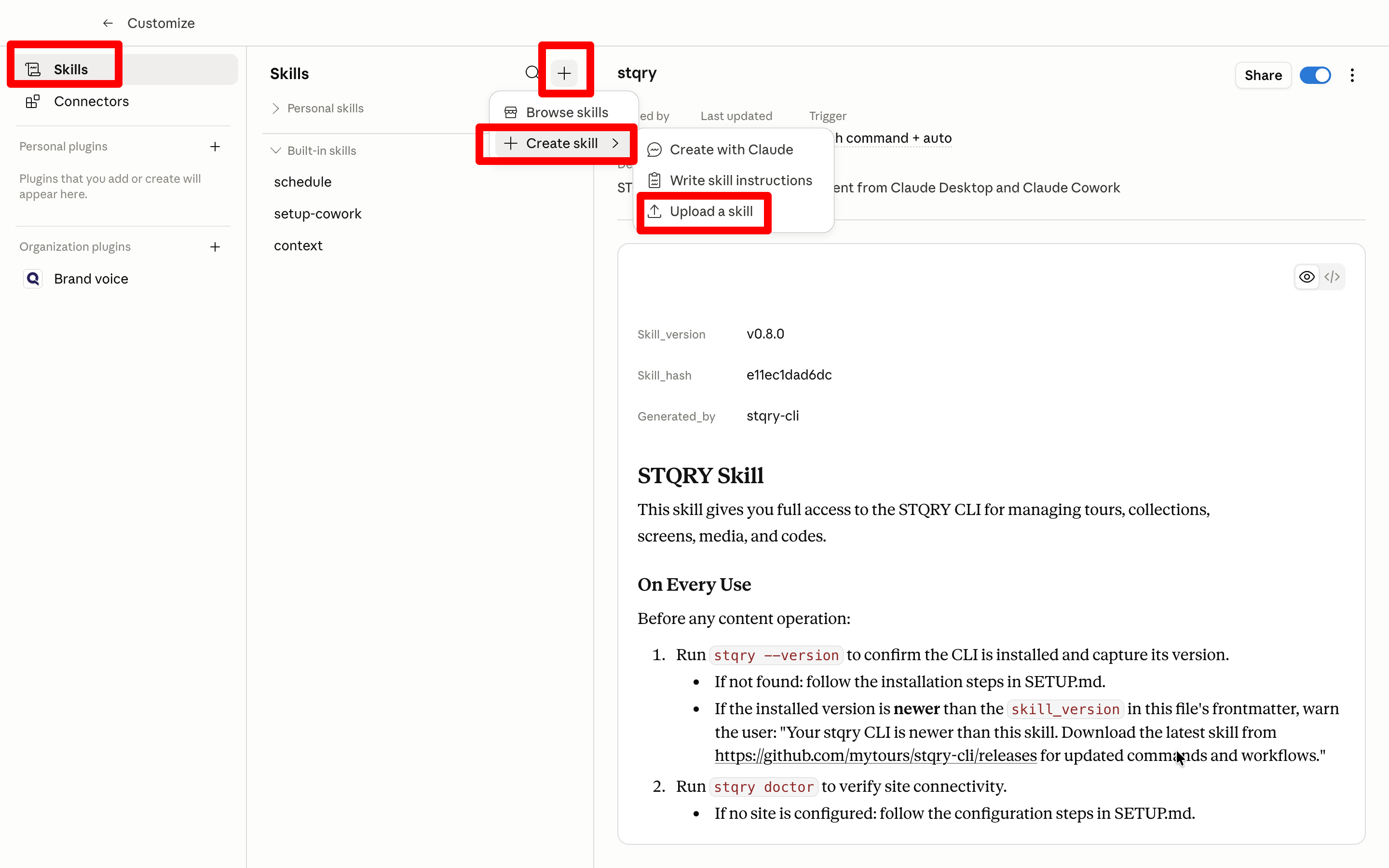
6. Go back to Claude Cowork. STQRY Studio for Claude is now ready to be used in Claude Cowork.
Step 3: Connect your STQRY Project
Tell Claude your API key to connect to your project.
Use STQRY with API Key <api_key>Claude will confirm the connection and you're ready to start working with your content.
Step 4: Start using Claude with your content
Once connected, you can give Claude natural language instructions. Here are some examples:
"List 10 screens in this STQRY Project""Upload all images from the tour-photos/ folder in my Cowork workspace into this STQRY Project""Create a tour about the Rochester subway. Make sure there's a stop highlighting Car 60. Use CC/public domain images from Wikimedia"Option B: Setting up Claude Code
This method requires familiarity with a terminal (macOS/Linux/Windows Subsystem for Linux). If you prefer a visual interface, use Option A above.
Step 1: Install Claude Code
1. Visit the Claude Code quickstart guide
2. Copy and paste the installation command for your operating system into your terminal.
3. Run claude and follow the prompts to log in to your Claude account.
claude4. Exit your terminal.
Note: Claude Code is best experienced with --dangerously-skip-permissions or with auto mode enabled.
Step 2: Install pip
STQRY Studio CLI is installed with Python's pip. If you already have pip, skip this step.
On macOS, open your terminal and run:
python3 -m ensurepip --upgradeOn Linux or Windows Subsystem for Linux, install it with your package manager:
sudo apt install python3-pipStep 3: Install STQRY Studio CLI
1. Open your terminal and run:
python3 -m pip install stqry2. Then run:
stqry setup claude3. Exit your terminal. STQRY Studio CLI is now ready to be used in Claude Code.
Step 4: Set up your STQRY Project
First, choose a project name — this can match your existing project name or be any name you like. It must be alphanumeric with no special characters (hyphens are allowed). Pick something short and easy to remember so you can navigate to it quickly.
1. Open your terminal and create a project folder:
mkdir <project_name>
cd <project_name>
claude
2. Tell Claude to initialize your STQRY Account:
Init a STQRY Account. API Key: <api_key>Step 5: Start using Claude with your content
Navigate to your project folder and launch Claude:
cd <project_name>
claude
Then give Claude instructions in plain language:
"List 10 screens in this STQRY Project""Upload all images in ~/Downloads/tour-photos into this STQRY Project"Updating STQRY Studio CLI: To update to the latest version, run:
python3 -m pip install --upgrade stqryFrequently asked questions
What is the ideal workflow for building content with Claude?
Start with the smallest elements and work your way up. Upload media files first, then verify they uploaded correctly. Next, build your screens and check they were created as expected. Finally, move on to building collection lists and tours. This step-by-step approach makes it easy to catch and fix issues early.
Can I use Claude to generate text-to-speech audio on STQRY?
Yes. Claude can generate audio narration for your screens and tours using STQRY's text-to-speech capabilities.
Can I build quizzes?
Yes. You can ask Claude to create quizzes for your tours and experiences.
Can I create badges?
Yes. You can ask Claude to create badges that visitors earn — for example, by answering quiz questions or visiting a location.
Can I ask Claude to choose a frame for my video thumbnail image?
Yes. Claude can select a frame from your video to use as the thumbnail image.
Which regions are available?
STQRY Studio for Claude supports all regions STQRY supports.
What can I ask Claude to do?
You can ask Claude to upload images, create tours with stops and descriptions, list and manage screens, organize collections, generate access codes, and more. Just describe what you need in plain language.
Is my API key secure?
Your API key is stored locally on your computer and is only shared with STQRY's servers when making API calls. Treat it like a password and don't share it publicly.
Need help getting started? Our team is here to assist. Contact your CSM or reach out to support@stqry.com.
Was this article helpful?
That’s Great!
Thank you for your feedback
Sorry! We couldn't be helpful
Thank you for your feedback
Feedback sent
We appreciate your effort and will try to fix the article